Create your own simple YouTube to MP3 App on Windows 11 (For Personal Use)
I’ll be honest — downloading some third-party application or visiting web apps for just a simple YouTube to MP3 conversion occasionally doesn’t make sense. Moreover, you are aware that such apps are often bloated with ads, bundled with mysterious toolbars, or require payment for basic features. After experiencing one too many frustrating situations, I decided to build my own command-line-based converter using YT-DLP. And honestly? It was way easier than I expected.
If you’re comfortable with installing basic free and open-source packages and following step-by-step instructions, you can create a personal YouTube to MP3 tool in under 10 minutes. This guide walks you through building a lightweight desktop app on Windows 11 that you can customize to suit your needs.
Important note: This is strictly for personal use with content you have permission to download. Respect copyright laws and YouTube’s Terms of Service.
Why Build Your Own Instead of Using Online Converters?
Let me explain why I chose this path. Online converters are convenient, sure, but they come with baggage:
- Privacy concerns — You’re uploading your viewing habits to third-party servers
- Quality limitations — Many cap audio quality or conversion speed
- Ads everywhere — Pop-ups, redirects, and intrusive advertisements
- Reliability issues — Sites frequently go down or change their terms
Building your own tool means you control everything: the interface, audio quality, file naming, and there’s zero tracking. Additionally, it’s a surprisingly good introduction to Python for those curious about programming.
What You’ll Need
Here’s what I used on my Windows 11 setup:
- Windows 11 (though this works on Windows 10 too)
- yt-dlp — A powerful, actively maintained YouTube downloader library
- FFmpeg — For audio processing (sounds technical, but installation is straightforward)
- Basic command line knowledge — Don’t worry, I’ll walk you through everything
The entire setup requires approximately 500MB of disk space, and all the software we’re using is completely free and open-source.
Step 1: Install yt-dlp and FFmpeg on Windows 11
To build our simple application, we require two main components: one is YT-DLP, a free YouTube downloader library available on GitHub, and the other is FFmpeg, a tool for audio processing. The best part is that we can install both on Windows 11 and 10 with the help of a single command using “Winget,” a package manager developed by Microsoft.
Right-click on the Windows 11 or 10 Start button and select “Windows Terminal or Windows PowerShell“.
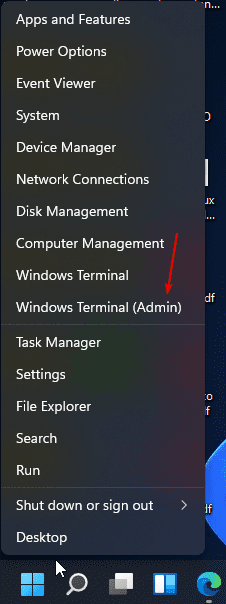
On the Terminal, run the following command to install and configure Yt-dlp and ffmpeg on your Windows system.
winget install yt-dlp
To verify that the installation is completed successfully, close the Command Terminal and then reopen it. After that type:
yt-dlp --version
ffmpeg -version
Step 2: Create Your Batch File
On your Windows 11 or 10 desktop, open Notepad and add the following code. I’ll give you the basic version first, then show you the enhanced version I actually use.
@echo off
title YouTube to MP3 Converter
color 0A

echo ================================
echo  YouTube to MP3 Converter
echo ================================
echo.

set /p url="Enter YouTube URL: "

echo.
echo Downloading and converting...
echo.

yt-dlp -x --audio-format mp3 --audio-quality 0 -o "%USERPROFILE%\Music\%%(title)s.%%(ext)s" "%url%"

echo.
echo ================================
echo Conversion complete!
echo File saved to: %USERPROFILE%\Music
echo ================================
echo.

pause
After copying and pasting the code below into your Notepad, click File -> Save as, give it a name YouTube_to_MP3.bat anywhere you want (I keep mine on my desktop).
Let me explain what’s happening here because I modified this several times before settling on this version:
- Line 1-3: Sets up the window appearance (that green text on black is optional, but looks cool)
- Line 5-8: Displays the header
- Line 10: Asks for the YouTube URL and stores it
- Line 16: This is the actual yt-dlp command that does all the work
- Line 18-23: Displays completion message
The --audio-quality 0 means “best quality” (counterintuitively, 0 is best, 9 is worst). Files get saved to your Music folder with the video title as the filename.
Now, when you double-click on your created BAT file, you will have the following interface. It will ask for the YouTube URL, and then it converts and saves the MP3 file in your system’s music folder.

Step 4: Enhanced Version (What I Actually Use)
After using the basic version for a week, I added some quality-of-life improvements:
@echo off
title YouTube to MP3 Converter
color 0A

:start
cls
echo ================================
echo  YouTube to MP3 Converter
echo ================================
echo.
echo Options:
echo  [1] Download Single Video
echo  [2] Download Playlist
echo  [3] Exit
echo.
set /p choice="Select option (1-3): "

if "%choice%"=="1" goto single
if "%choice%"=="2" goto playlist
if "%choice%"=="3" goto end
goto start

:single
cls
echo ================================
echo  Single Video Download
echo ================================
echo.
set /p url="Enter YouTube URL: "
set /p quality="Audio quality (128/192/256/320): "

if "%quality%"=="" set quality=192

echo.
echo Downloading and converting to MP3 (%quality%kbps)...
echo.

yt-dlp -x --audio-format mp3 --audio-quality %quality%k -o "%USERPROFILE%\Music\%%(title)s.%%(ext)s" --embed-thumbnail "%url%"

echo.
echo ================================
echo Download complete!
echo File location: %USERPROFILE%\Music
echo ================================
echo.
pause
goto start

:playlist
cls
echo ================================
echo  Playlist Download
echo ================================
echo.
set /p url="Enter YouTube Playlist URL: "

echo.
echo Downloading playlist...
echo This may take a while depending on playlist size.
echo.

yt-dlp -x --audio-format mp3 --audio-quality 192k -o "%USERPROFILE%\Music\%%(playlist)s\%%(title)s.%%(ext)s" --embed-thumbnail "%url%"

echo.
echo ================================
echo Playlist download complete!
echo Files location: %USERPROFILE%\Music
echo ================================
echo.
pause
goto start

:end
echo.
echo Thanks for using YouTube to MP3 Converter!
timeout /t 2 >nul
exit
This version includes:
- Menu system — Choose between single videos or playlists
- Quality selection — Pick your preferred bitrate (I usually use 320kbps for music, 128kbps for podcasts)
- Playlist support — Downloads entire playlists into organized folders
- Album art embedding — The
--embed-thumbnailflag adds the video thumbnail as album art - Loop functionality — Converts multiple files without restarting

I tested this extensively on my Windows 11 machine, and it handles everything I throw at it. The playlist feature is handy when I want to download educational series or music albums.
Step 5: How to Actually Use Your New “App”
Like I said earlier, once created, double-click your .bat file. That’s literally it.
When I first ran this, I tested it with a Creative Commons music video. The process looked like this:
- Double-clicked
YouTube_to_MP3.bat - Selected option 1 for single video
- Pasted the URL:
https://www.youtube.com/watch?v=example - Chose quality:
320 - Watched the progress bar fill up (takes 10-30 seconds depending on video length)
- Found my MP3 in the Music folder with perfect audio quality and album art
The entire conversion took maybe 20 seconds for a 4-minute song. Way faster than any online converter I’ve used.
Customization Options You Can Try
Once you’ve got the basic version working, here are the tweaks I’ve experimented with:
Change the Output Location:
Replace %USERPROFILE%\Music\ with any folder path:
yt-dlp -x --audio-format mp3 -o "D:\My Music\%%(title)s.%%(ext)s" "%url%"Add Multiple Format Options:
I created a version that lets me choose between MP3, M4A, and OGG:
set /p format="Choose format (mp3/m4a/ogg): "
yt-dlp -x --audio-format %format% -o "%USERPROFILE%\Music\%%(title)s.%%(ext)s" "%url%"
Extract Audio from Specific Time Range:
For long podcasts where I only want a specific segment:
set /p start="Start time (HH:MM:SS): "
set /p end="End time (HH:MM:SS): "
yt-dlp --download-sections "*%start%-%end%" -x --audio-format mp3 -o "%USERPROFILE%\Music\%%(title)s.%%(ext)s" "%url%"
Auto-organize by Channel:
This creates a subfolder for each YouTube channel:
yt-dlp -x --audio-format mp3 -o "%USERPROFILE%\Music\%%(uploader)s\%%(title)s.%%(ext)s" "%url%"I use this last one frequently because it keeps my music collection organized by artist/creator automatically.
Creating a Desktop Shortcut
To make this feel even more like a “real” app:
- Right-click your
.batfile → “Create shortcut” - Right-click the shortcut → “Properties“
- Click “Change Icon” and pick something that looks app–like
- Move the shortcut to your desktop
Now you’ve got what looks like a professional application. I even pinned mine to my taskbar.
Troubleshooting Issues I’ve Encountered
“‘yt-dlp’ is not recognized…”
This means yt–dlp isn’t in your PATH. Double-check Step 1, and make sure to restart Command Prompt after adding to PATH.
“Unable to extract”
YouTube occasionally updates its site, which breaks downloaders. Update yt-dlp by downloading the latest .exe from GitHub and replacing your old one. I check for updates monthly.
Slow downloads
Some videos download slowly due to YouTube throttling. If it’s consistently slow, try adding --concurrent-fragments 4 to your command to download in parallel.
Age-restricted videos fail
These require authentication. You can use cookies from your browser, but that’s more advanced. For basic personal use, I avoid content that is age-restricted.
Antivirus flags the batch file.
This occurs occasionally because batch files can, in theory, be malicious. Your antivirus is just being cautious. Add an exception for your specific file — you know it’s safe because you wrote it yourself.
Why This Beats Every Other Method I’ve Tried
After using this setup for several months, here’s what genuinely works better than commercial apps or Python scripts:
Simplicity: I can email this batch file to my tech-phobic relatives and they can use it. No installation: Everything runs from a single file. Zero bloat: No ads, no bundled software, no telemetry Lightning fast: No web browser overhead or server queues 100% free: No premium tiers or feature limitations Privacy: Everything happens locally on my machine
The only real downside is that it’s not as pretty as a GUI application. But honestly? I barely notice when it works this well.
Legal and Ethical Use
I need to be crystal clear about this: downloading copyrighted content without permission is a violation of YouTube’s Terms of Service and potentially infringes on copyright law.
I use this tool exclusively for:
- Backing up my own uploaded content
- Downloading Creative Commons-licensed material
- Educational content where I have explicit permission
- Public domain recordings
Always respect content creators. If you enjoy someone’s work, support them through proper channels. This tool is for convenience with content you’re already entitled to access offline, not for piracy.
Final Thoughts
Building a YouTube to MP3 converter with a simple batch file is probably the most straightforward approach I’ve found. No Python installation, no complex dependencies, just a small text file that does exactly what you need.
The entire setup took me maybe 15 minutes from scratch, and I’ve been using this same batch file for months without issues. It just works.
Remember to use this responsibly, respect copyright, and only download content you have permission to access. The tools are neutral — it’s how we use them that matters.
Have you created any useful batch file utilities? I’m always curious what clever solutions people come up with for everyday tasks. Feel free to share your modifications or ask questions about specific features you’d like to add.
Source link