How to Check Windows Version in Windows 11 (4 Quick Ways + Screenshots)
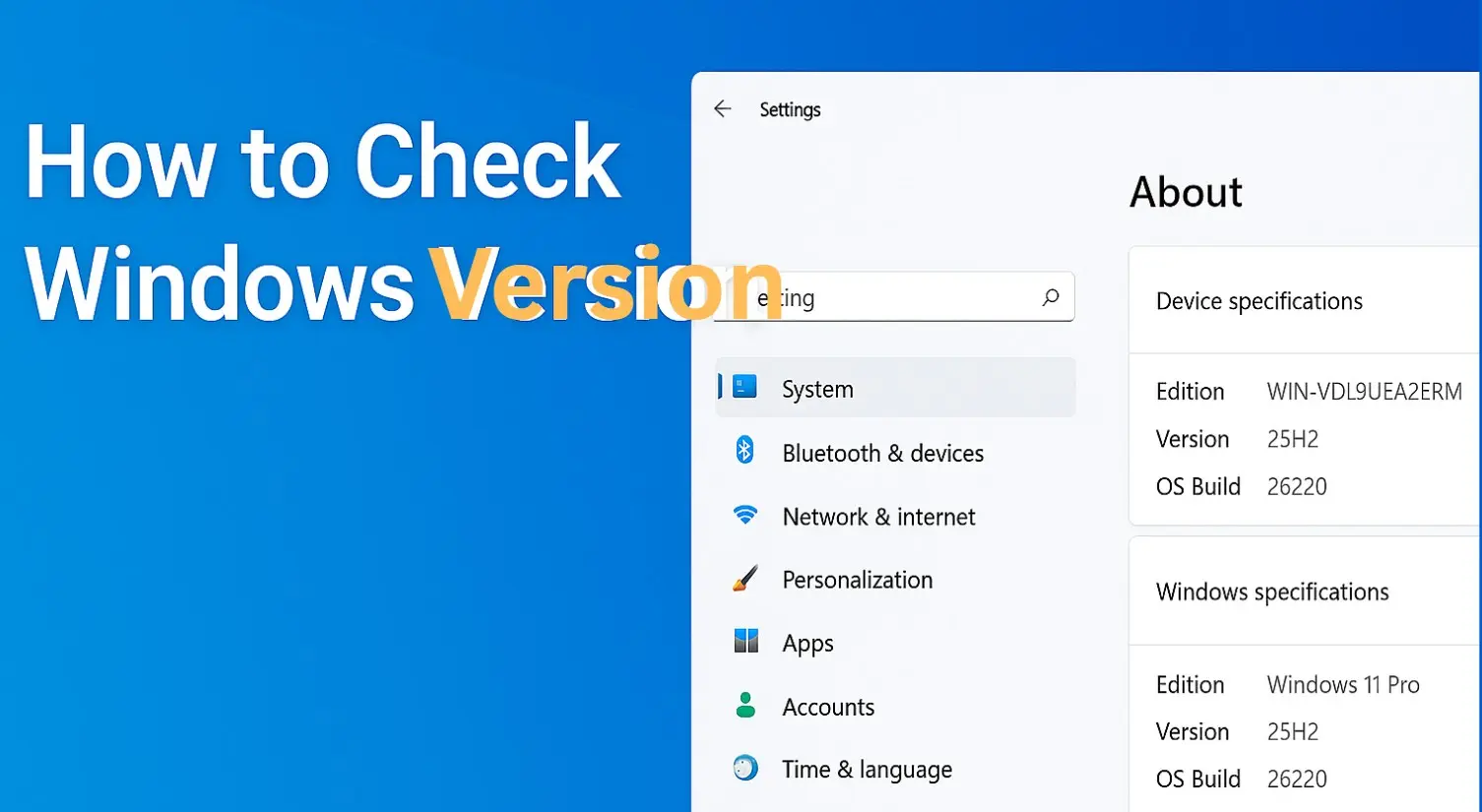
Knowing how to check your Windows version in Windows 11 is essential whether you’re troubleshooting compatibility issues, installing new drivers, or confirming you have the latest security updates. Well, if you don’t know? The fastest way is – Open Settings → System → About to instantly see your Edition, Version, and OS Build number. However, it is not the only way to get the details of your current Windows operating system; there are more. That is why here we are with four reliable methods that I use regularly on my own Windows 11 machine, complete with screenshots and troubleshooting tips for when things don’t look quite right.
Quick Glance at Methods
Here’s a quick overview of the four ways you can check your Windows 11 version:
- Settings (System → About) — The easiest graphical method for most users
- Winver (Run → winver) — Fastest single command for a quick pop-up
- System Information (msinfo32) — Best for detailed hardware and system specs
- PowerShell / Command Prompt — Perfect for IT pros, scripts, and remote checks
Why Check Your Windows Version?
Those who occasionally use a computer might wonder why this matters. From my experience working with Windows systems, there are three main scenarios where knowing your exact version becomes critical:
Compatibility checks — Many apps and games require specific Windows 11 builds. I’ve encountered software that works perfectly on 24H2 but needs tweaks on 25H2.
Driver installations — Graphics card manufacturers and peripheral makers often release drivers targeting specific OS builds. Installing the wrong driver can cause crashes or performance issues.
Security and support — Microsoft releases monthly cumulative updates tied to build numbers. If you’re calling support or searching forums, they’ll ask for your exact version to provide accurate help.
4 Ways to Check Windows Version in Windows 11
Let me walk you through each method step by step. I’ve tested all of these on my Windows 11 PC, and they work reliably across different editions.
Method 1 — Using System Settings
This is, in fact, my go-to method because it’s visual, straightforward, and provides all the information in one place.
- Step 1: Press Windows + I to open Settings (or click Start → Settings)
- Step 2: Click System in the left sidebar (it’s usually selected by default)
- Step 3: Scroll down and click About at the bottom of the System menu
- Step 4: Look for the Windows specifications section — here you’ll see:
- Edition (like Windows 11 Pro)
- Version (such as 25H2)
- OS build (the detailed build number like 26220.7052)

The nice thing about this method is that you’ll also see your device’s specs, processor information, and installed RAM on the same page — super handy when you need multiple details at once.
Method 2 — Using Run & winver
This is probably the fastest method when you need a quick answer. I use this all the time when I’m already deep in other work and don’t want to navigate through Settings.
- Step 1: Press Win + R to open the Run dialog box
- Step 2: Type winver and press Enter

- Step 3: A small “About Windows” dialog will pop up showing:
- The version name at the top (e.g., “Version 25H2”)
- The full OS build number (e.g., “OS Build 26220.7052”)
- Copyright information and edition details

What I like about Winver is that it’s lightning-fast and doesn’t require administrator privileges. The downside? It shows slightly less detail compared to the Settings method, but for most purposes, it’s perfectly sufficient.
Method 3 — System Information (msinfo32)
Although the earlier two discussed methods are sufficient to check the version of Windows 11, if you need a more comprehensive view or additional details about your OS, apart from the version, such as BIOS version, hardware details, and system diagnostics, I recommend using System Information. It’s more comprehensive than the other methods.
- Step 1: Press Win + R to open Run
- Step 2: Type msinfo32 and press Enter

- Step 3: The System Information window opens with a detailed overview
- Step 4: Look at the right panel under “System Summary” for:
- OS Name (Microsoft Windows 11 Pro)
- Version (10.0.22631 Build 26220)
- System Type (x64-based PC)
- Plus BIOS info, processor details, and installed physical memory

This method is beneficial if you’re troubleshooting hardware compatibility or need to document your complete system configuration. I’ve used this countless times when filing bug reports or speaking with technical support — they often request an MSInfo32 export.
Method 4 — PowerShell / Command Prompt
For the tech-savvy crowd (or anyone managing multiple PCs), command-line methods are incredibly powerful. I’ll show you commands for both PowerShell and Command Prompt.
Using Command Prompt:
- Step 1: Press Win + X and select Command Prompt or Terminal
- Step 2: Type or paste this command:
systeminfo | findstr /B /C:"OS Name" /C:"OS Version"- Step 3: Press Enter to see output like:
OS Name: Microsoft Windows 11 Pro
OS Version: 10.0.22631 N/A Build 22631
Using PowerShell:
- Step 1: Press Win + X and select Windows PowerShell or Terminal (Admin)
- Step 2: Run this command:
Get-ComputerInfo -Property OsName, OsDisplayVersion, OsBuildNumberStep 3: You’ll get structured output showing:

The PowerShell method is my favorite for scripting because it allows for easy export of results, remote checking of multiple computers (with proper permissions), and integration into automation workflows. If you manage several PCs, this becomes invaluable.
How to Interpret Edition, Version, and OS Build
I’ve noticed a lot of confusion around these three terms, so let me break them down clearly:
| Term | What It Means | Example |
|---|---|---|
| Edition | The specific Windows 11 product license you’re running | Home, Pro, Enterprise, Education |
| Version | The major feature update release (typically twice a year) | 21H2, 22H2, 23H2, 24H2, 24H2 |
| OS Build | The precise build number including cumulative updates | 22631.4317 (first part is base build, second is update revision) |
Edition determines what features you have access to — Pro includes BitLocker, Remote Desktop, and Hyper–V, while Home doesn’t.
Version tells you which major feature set you’re on. For example, 25H2 (released in late 2025) added new File Explorer features and improved Windows Copilot integration.
OS Build is the most granular — it changes with every monthly security update. When troubleshooting, tech support will often ask for this specific number because it tells them exactly which patches you have installed.
Troubleshooting — If You Don’t See Windows 11 but Expect It
I’ve helped several friends and colleagues who thought they had Windows 11 but were still running Windows 10. Here’s what to check:
Check Windows Update first:
- Open Settings → Windows Update
- Click Check for updates
- Look for a Windows 11 feature update
If you don’t see an available Windows 11 upgrade, your hardware might not meet the requirements.
Verify hardware compatibility:
- TPM 2.0 — Required security chip (check in BIOS/UEFI settings)
- Secure Boot — Must be enabled in BIOS/UEFI
- CPU compatibility — Only Intel 8th gen / AMD Ryzen 2000 series and newer
To check these:
- Press Win + R, type tpm.msc, and press Enter to verify TPM
- Press Win + R, type msinfo32, check “BIOS Mode” should say “UEFI” and “Secure Boot State” should say “On”
If your hardware doesn’t meet requirements, you’ll need to stay on Windows 10 or consider upgrading your PC. Microsoft has a PC Health Check tool that’ll tell you exactly what’s missing.
OEM restrictions: Some enterprise or educational PCs have deployment restrictions that prevent Windows 11 upgrades. If you’re on a work computer, check with your IT department.
Frequently Asked Questions
Yes, absolutely. Winver is a built-in Windows utility that’s been around for decades. It simply displays version information — it doesn’t modify any settings or pose any security risk. I run it multiple times a day without any concerns.
The easiest way is through Settings → System → About. Look for “System type” — it’ll say either “64-bit operating system, x64-based processor” or “32-bit operating system.” Realistically, all Windows 11 installations are 64-bit, as Microsoft has dropped 32-bit support entirely for this version.
Your options are quite limited here. You can try accessing the BIOS/UEFI firmware (press F2, Del, or F12 during boot, depending on your manufacturer), but it will not display the Windows version information. Your best bet is using the Windows Recovery Environment: boot from a Windows installation USB, choose “Repair your computer,” open Command Prompt, and run dism /Image:C:\ /Get-CurrentEdition (adjust drive letter if needed). It’s not ideal, but it works in a pinch.
Version is the marketing name for major feature updates (like 25H2 for “2025 Half 2”). OS Build is the actual technical build number that includes all cumulative updates. Think of Version as the chapter number in a book, while OS Build is the exact page number — much more specific.
Microsoft releases cumulative updates monthly (usually on “Patch Tuesday,” the second Tuesday of each month). Each update increments the revision number after the decimal point in your build. So you might go from 22631.4317 to 22631.4442 after November’s updates. Major version changes happen about once or twice a year.
Need More Help?
If you’re still having trouble identifying your Windows version or encountering compatibility issues, Microsoft’s official Windows 11 support page offers comprehensive troubleshooting guides and community forums. You can also check out their Windows Update troubleshooting tool if updates aren’t installing properly.
For driver-specific issues, I’d recommend visiting your PC manufacturer’s support site directly — they often have Windows 11-specific driver packages and compatibility lists that can save you hours of troubleshooting.
Source link